
Getting started
Install, sign in and try it once. About 5 minutes.
3 min read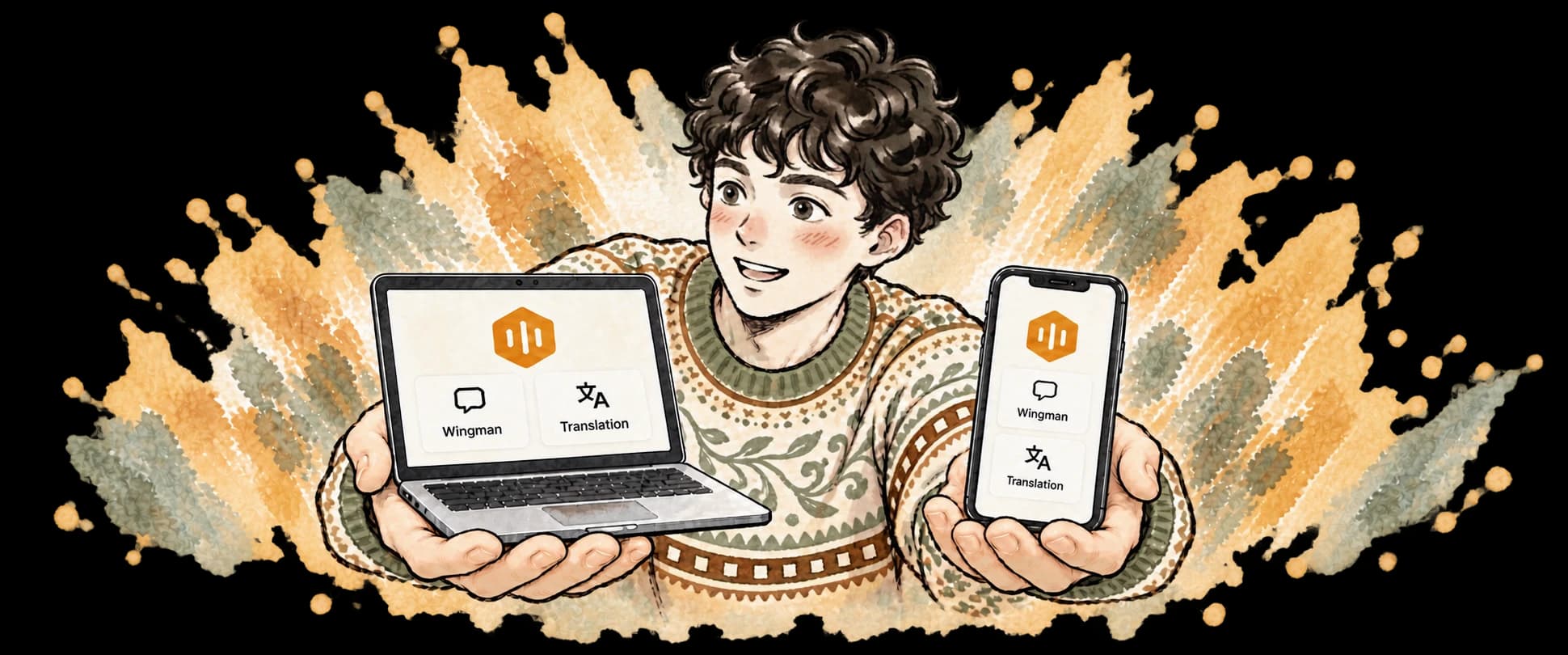
Three things CueBee helps with
1. Download and install
Open cuebee.ca/download:
Click Download for Mac, then choose your Mac: Apple silicon or Intel processor.
Not sure which? Open the Apple menu → About This Mac. If it says Chip Apple M…, you have Apple silicon. Needs macOS Sonoma 14.2 or later.
Click Download for Windows and open the installer. Needs Windows 10 or 11 (64-bit).
The App Store release is still under review, so for now install the beta with TestFlight:
① Install TestFlight ② Open the CueBee invitation ③ Accept it and install CueBee
Tap Download for Android (preview). Open the downloaded file and, when Android asks, allow your browser to install apps.
Needs a 64-bit phone on Android 12 or later. It isn’t in an app store yet: when there’s a new version, CueBee’s Home tells you, and you download and install it again.
2. Sign in
Use Apple, Google or email. Apple and Google open your browser and bring you back to CueBee when you’re done. First time? Click Create account and we’ll email you a 6-digit code.
Tick the box to agree to the terms, then choose Apple, Google or email. Signing up with email sends you a 6-digit code.
Tick the box to agree to the terms, then choose Google or email. Signing up with email sends you a 6-digit code.
Use the same account on your computer and your phone: hours, backgrounds and history are all shared.
Got an invite link from a friend?
Open the link and sign up on the web first, or the invite doesn’t count. Then sign in to the app with the same account. Your friend’s invite gift arrives once you’ve used CueBee for a while.Used the old CueBee app?
After you sign in with Apple, CueBee asks “Used CueBee before?”. Choose Recover my old records and sign in once more with the Apple ID from the old app: your sessions, backgrounds and remaining hours come back.3. Allow the microphone
The first time you start a conversation, your device asks whether CueBee can use the microphone. Choose Allow. CueBee doesn’t record when no conversation is on.
Chose Don’t Allow by mistake? System Settings → Privacy & Security → Microphone, turn on CueBee, then restart CueBee.
CueBee can’t hear you? In Windows Settings → Privacy & security → Microphone, make sure apps may use your microphone. Meeting audio needs no extra permission.
It asks for the camera when you scan a code to join, and for Photos when you save an invite picture: allow them when you get there. Tapped the wrong button? Turn it on in the iPhone’s Settings → CueBee.
It also asks about notifications, which show “CueBee is listening”; it works without them. Duo mode with earbuds asks for Nearby devices, and scanning a code asks for the camera.
4. Put your earbuds in
CueBee reads its tips into your earbuds, so only you hear them. Without earbuds they play from your computer’sphone’s speaker, and the other person hears them too.

5. Try it once: 3 minutes
After you first sign in, a one-minute tour has you set a background, choose how CueBee listens, tune replies and voice, then practise the gestures. Practice keeps the microphone off and uses no hours. Skipped it? Replay it anytime from Settings → View Tutorial.
Follow the three steps below to try Wingman once. Or open Profile → View tutorial for a two-minute walkthrough.
Want to try translation first? Pick a language under Translate into and play a video in another language.
6. See how much time you have
New accounts get free hours, no card needed. Wingman and translation are counted separately.
How much you get, and what each plan includes: see the pricing page.
What to read next
Still have questions?
How many devices can one account use?
Your computer, your phone and the web can all use the same account, sharing hours, backgrounds and history. Start a conversation on one, tap Join on another, and follow along there.
What can the web app do?
Right now it does translation (in Chrome, Edge or Safari), and you can look through your history and watch conversations others share. Wingman and interview mode need the app.
Is CueBee always recording?
No. It only listens once you start a conversation or a translation, and stops when you end or pause it.
What happens when my time runs out?
The conversation stops, and everything recorded so far is saved. Need more time? See the pricing page.

Welcome to CueBee
Can’t install or sign in? Email hello@cuebee.ca