
Using translation
Classes, meetings, online courses, a chat with someone from abroad. The translation appears as soon as they speak.
5 min read
You don’t tell CueBee what language they speak.It hears that on its own. Just pick what to translate into, and start.
Before you start
All on Home’s Translate card, and remembered once chosen
1. Choose what to translate into
Pick a language you read. Whatever language they speak, CueBee recognizes it.
2. Two people, two languages: two-way translation New
At the top of the Translate card, switch to Two-way and set I speak and They speak. CueBee tells who’s talking by their language, so nobody takes turns on buttons: your words are translated into their language, and theirs into yours.
3. What it listens to
The first time you start, CueBee asks you to pick one of two:iPhone listens through its own microphone. Put the phone near whoever is speaking.The web app listens to your microphone only. The first time, your browser asks for the microphone: choose Allow.



4. Add context so names and terms come out right Optional, but worth it
Give CueBee your slides, agenda or name list, and it listens out for the names and terms in them. You can also write pairs, like “张伟 = David Zhang”.
PDFs, images and text files, up to 5 files. Export slides to PDF first. Once a translation starts, its context can’t be changed.
The web app can’t add context yet. For that, use the desktop app or iPhone.
5. Speak translation: no need to watch the screen Optional
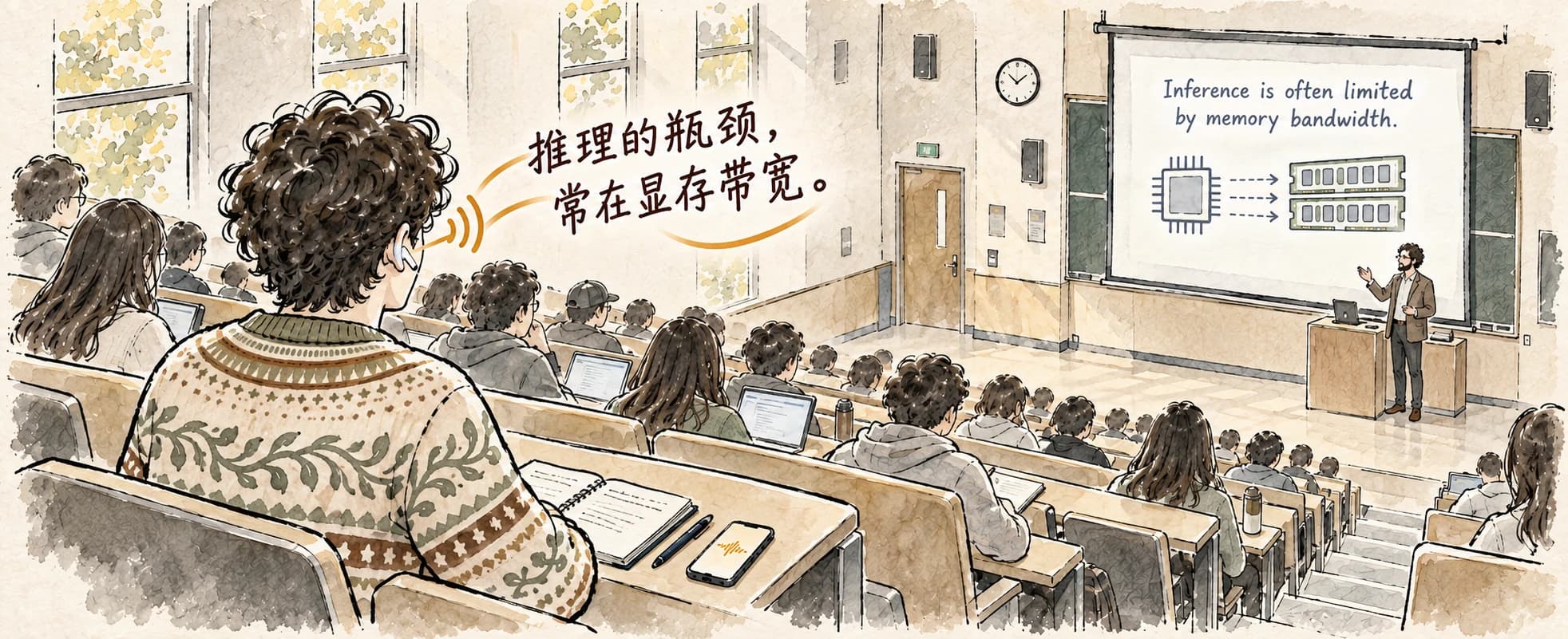
Turn on Speak translation and translations are read straight into your earbuds, so you can look at whoever is talking.
While translating
6. Start translating
Click Start translation. Tap the Translate heading of the card to start: the card has no separate Start button. Sign in, then click Start translation. Each sentence shows the original on top and the translation below.
When several people talk, each sentence is labelled Speaker 1, 2 and so on; click a label to name them. If you’ve set up your voiceprint, what you say is labelled Me.
Swipe sidewaysInvisible
The screen goes black at its lowest brightness while translating and reading aloud carry on, so nobody nearby can tell. Swipe sideways again to come back. Works in one-way and two-way.Triple-tap the screenEnd
Tap three times anywhere on the screen, even while invisible, or tap ■.Android phones work the same way, and Back also leaves Invisible.
7. Changing the language mid-way
Tap the language at the top anytime. Later sentences use the new language; earlier ones stay as they are.Click Pause, change the language at the top, then click Resume. It can’t be changed while translating.
8. Videos and online classes: captions on top
At the top, Captions → Floating window. Translations float over other apps one sentence at a time; drag them anywhere, and double-click to return to CueBee.iPad only: tap Float captions, and when you switch to another app the captions float on top in Picture in Picture. Not on iPhone yet.The web app has no floating captions yet. For them, use the desktop app.
- Show original
- On
- Text size
- Default
- Text color
- White
- Background
- Dimmed
- Show original
- On
- Style
- Automatic
- Text size
- Medium
- Float when I switch apps
- On
9. Lost the thread? Ask CueBee
Drifted off, didn’t follow, not sure how to reply? Just ask. Only you see it.

10. Let others watch
Click Share at the top and let them scan the QR code, or send the 12-digit code or the link.Tap the sharing mark at the top and open Share, then let them scan the QR code, or send the 12-digit code or the link.The web app can’t share your own translation, but it can watch someone else’s: just open the link they send.
Everything about sharing and watching →Viewers sign in to CueBee to watch, and enter the code under Join a live session on Homeunder Watch someone’s session or Scan on Homein their browser. Your own signed-in devices need no invite: they see it on their own.
Afterwards
11. Review, export and keep asking
Everything about History →It’s saved when you finish: CueBee writes a recap, and the original and the translation are both kept. Export it as .txt or .md, or keep asking CueBee about it.
What works where
Translation and Wingman time are counted separately| Feature | Computer | iPhone / iPad | Web |
|---|---|---|---|
| One-way translation | Yes | Yes | Yes |
| Two-way translation | Yes (one conversation list) | Yes (three layouts) | Not yet |
| Meeting audio from the computer | Yes | — | Microphone only |
| Context | Yes | Yes | Not yet |
| Speak translation | Yes (one-way, microphone) | Yes, with voice and speed | Yes |
| Change language mid-way | Pause first | Anytime | Pause first |
| Floating captions | Yes | iPad only | Not yet |
| Share with others | Yes | Yes | Watch others only |
| Play recordings in History | Yes | On the recording phone only | Not yet |
On iPhone and Android phones, two-way translation has three layouts: face to face, side by side and show them (see step 2).
Still have questions?
Which languages can it translate into?
More than twenty, including Chinese, English, Japanese, Korean, Spanish, French and German. Traditional Chinese isn’t available yet. You don’t choose the spoken language: CueBee detects it.
Names and technical terms keep coming out wrong?
Before you start, add a context (step 4) with the names and terms in it, or attach the slides.
Are recordings and materials kept?
Speech has to go to the cloud to be translated, and by default a copy of the recording is kept in your account so you can play it back. Files you add to a context aren’t kept: only the names and terms CueBee picked out of them.
What happens when translation time runs out?
The translation stops, and everything translated so far is saved. Translation and Wingman time are counted separately; each plan’s hours are on the pricing page.

Leave the hard-to-follow parts to CueBee
More questions? Email hello@cuebee.ca